
Captures d'écran

Détails de l'application
- Version
- 2.8
- Taille
- 26.85 MB
- Mis à jour
- March 16, 2022
- Requiert
- Windows 7
- Langue
- English
- Licence
- Free
- Développeur
- The EasyUEFI Development Team
- Catégorie
- Windows OS
SoftPas en:
Ce produit est également disponible dans les langues suivantes :
À propos de Hasleo Backup Suite
Download Hasleo Backup Suite – Free Windows Backup Tool for Secure Data Protection
Overview – What Is Hasleo Backup Suite?
Hasleo Backup Suite est un utilitaire de sauvegarde gratuit, uniquement pour Windows, créé par Hasleo Software. Conçu pour les utilisateurs domestiques et les professionnels de petites entreprises, la suite offre une puissance surprenante dans une interface intuitive. Que vous ayez besoin de protéger une toute nouvelle installation du système d’exploitation, de préserver des fichiers personnels critiques ou de cloner un disque entier pour une migration, Hasleo propose des options de sauvegarde complètes, incrémentielles et différentielles qui rivalisent avec des solutions payantes comme AOMEI Backupper et EaseUS Todo Backup. Le programme prend en charge un large éventail de supports de stockage — y compris les disques durs externes, les clés USB, les partages réseau et les destinations cloud — tout en offrant un chiffrement AES‑256 intégré pour garder vos données à l’abri des regards indiscrets. L’une de ses qualités remarquables est la capacité de sauvegarder à la fois le système d’exploitation et les partitions individuelles, vous donnant la flexibilité de protéger les fichiers système et les données utilisateur séparément ou ensemble. La suite comprend également une fonction de clonage qui crée des copies 1:1 de disques, facilitant les mises à niveau matérielles ou la récupération après sinistre. Bien qu’elle soit gratuite, le logiciel reçoit des mises à jour régulières et est entièrement compatible avec Windows 11 dès l’installation, garantissant votre protection sur les dernières plateformes. En bref, Hasleo Backup Suite combine simplicité, personnalisation et sécurité robuste dans un seul package prêt à relever les défis quotidiens de sauvegarde.
Key Features That Set Hasleo Backup Suite Apart
- Multiple Backup Modes: Choose from full, incremental, or differential backups to balance speed and storage efficiency.
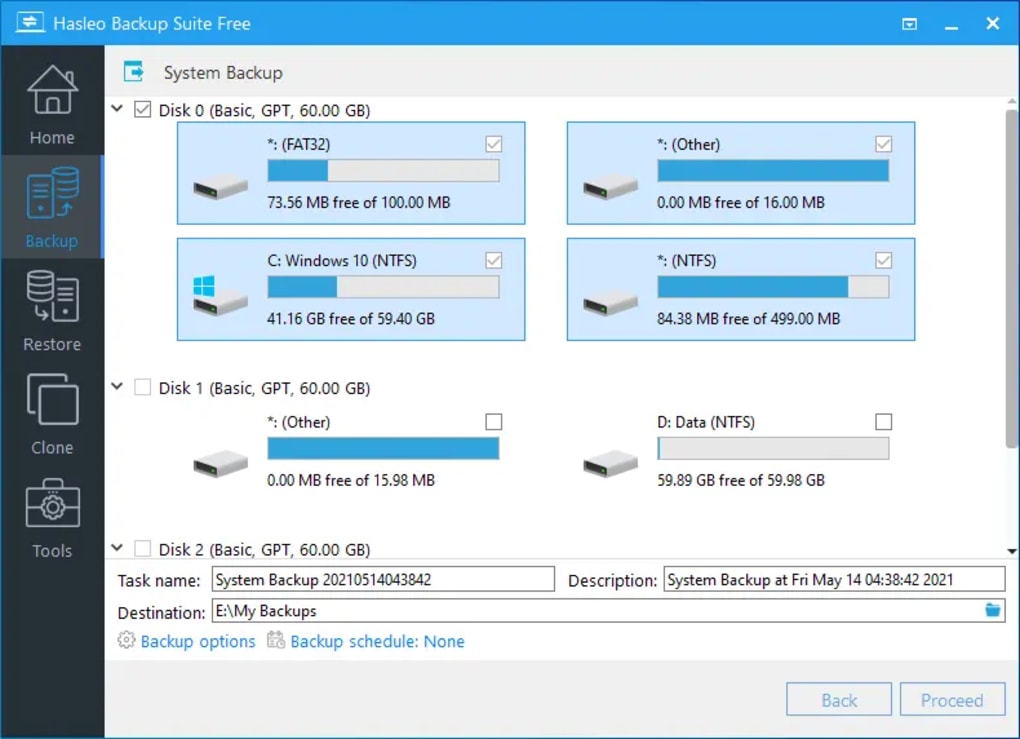
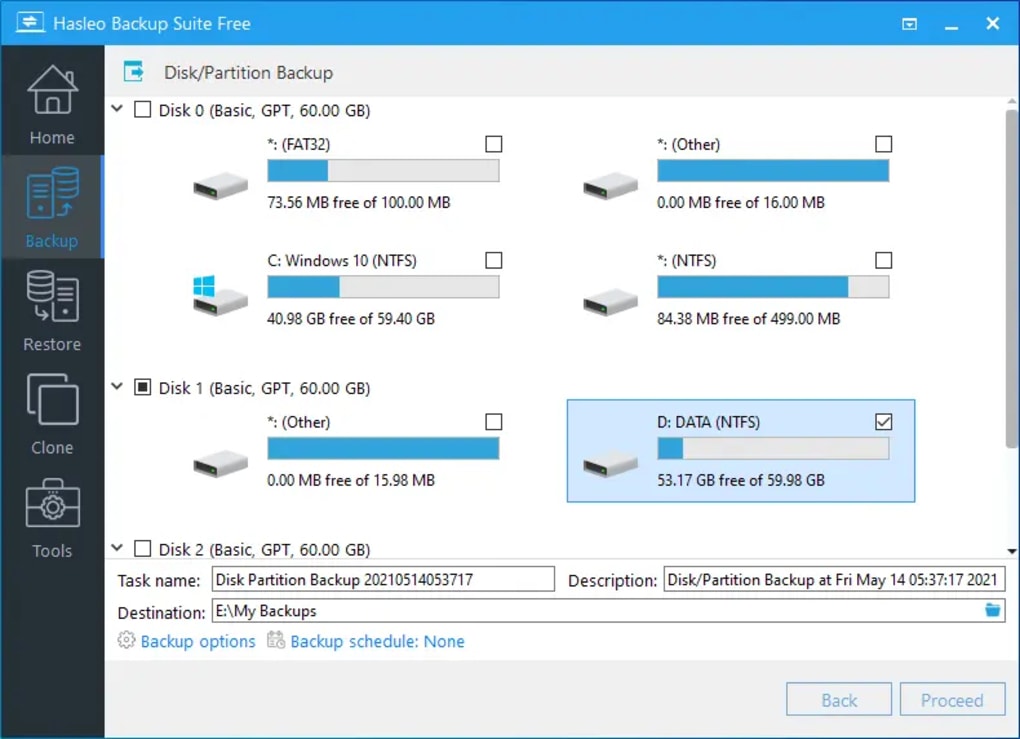
- OS & Partition Backup: Protect your Windows operating system, individual partitions, or both in a single operation.
- Scheduled & Event‑Driven Automation: Set daily, weekly, or monthly schedules, or trigger backups based on system events such as startup or user login.
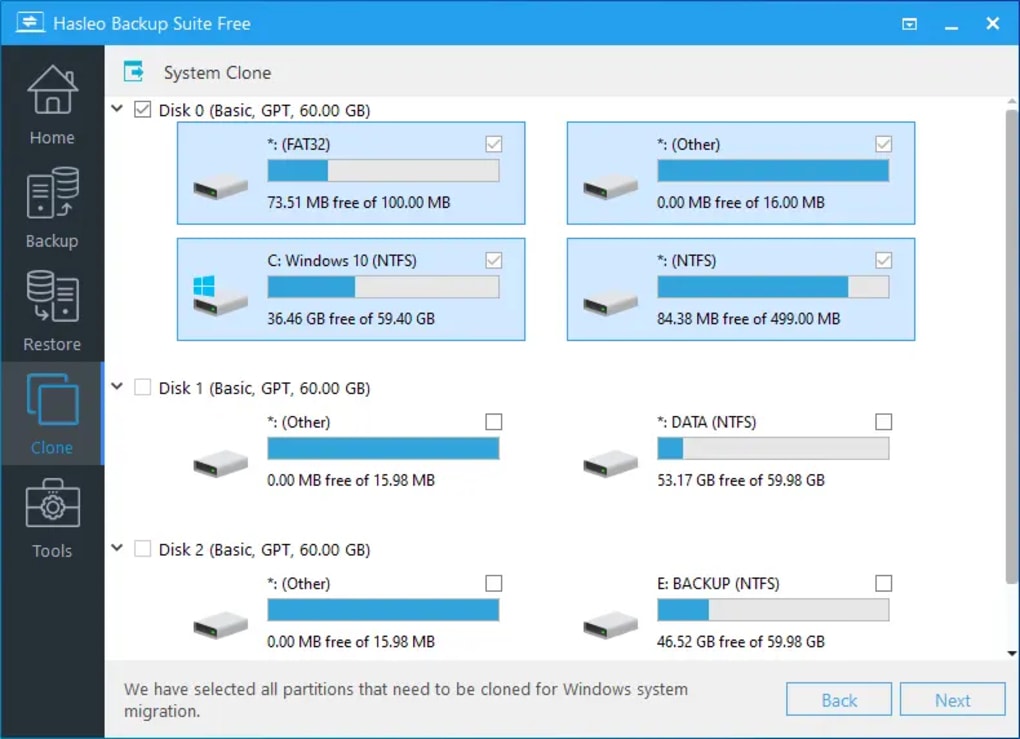
- Disk Cloning: Create exact 1:1 clones of entire drives for hardware migration or quick disaster recovery.
- Encryption & Compression: Secure your backups with AES‑256 encryption and reduce file size with built‑in compression.
- Multi‑Destination Support: Save backups to local disks, external USB drives, NAS devices, or cloud services like OneDrive and Google Drive.
- File Integrity Checks: Automatic verification after each backup ensures that data isn’t corrupted or incomplete.
- Selective Restore: Retrieve whole systems, specific partitions, or individual files and folders without restoring the entire image.
- Intuitive Wizard‑Based UI: Step‑by‑step guides make it easy for beginners while advanced users can fine‑tune settings.
- Free Updates & Technical Support: Regular patches keep the software compatible with the latest Windows releases, and a responsive forum provides community help.
Step‑by‑Step Installation, Usage Tips & System Compatibility
Installing Hasleo Backup Suite is straightforward. Download the installer from the official Hasleo website, then run the .exe file. The setup wizard guides you through standard steps: accepting the license agreement, selecting an installation folder, and optionally creating a desktop shortcut. After the brief installation, the program launches automatically, presenting a clean dashboard with three main tabs—Backup, Clone, and Settings.
Creating Your First Backup begins with the Backup tab. Click “Create New Backup,” then choose the type (Full, Incremental, Differential). For a typical system backup, select “Full” and point the source to the system drive (usually C:). Choose a destination—an external HDD is recommended for faster restores. Enable encryption if you store the backup in a shared environment, and set a compression level that balances speed and space. The wizard then lets you schedule the job; a weekly Saturday night run works well for most users.
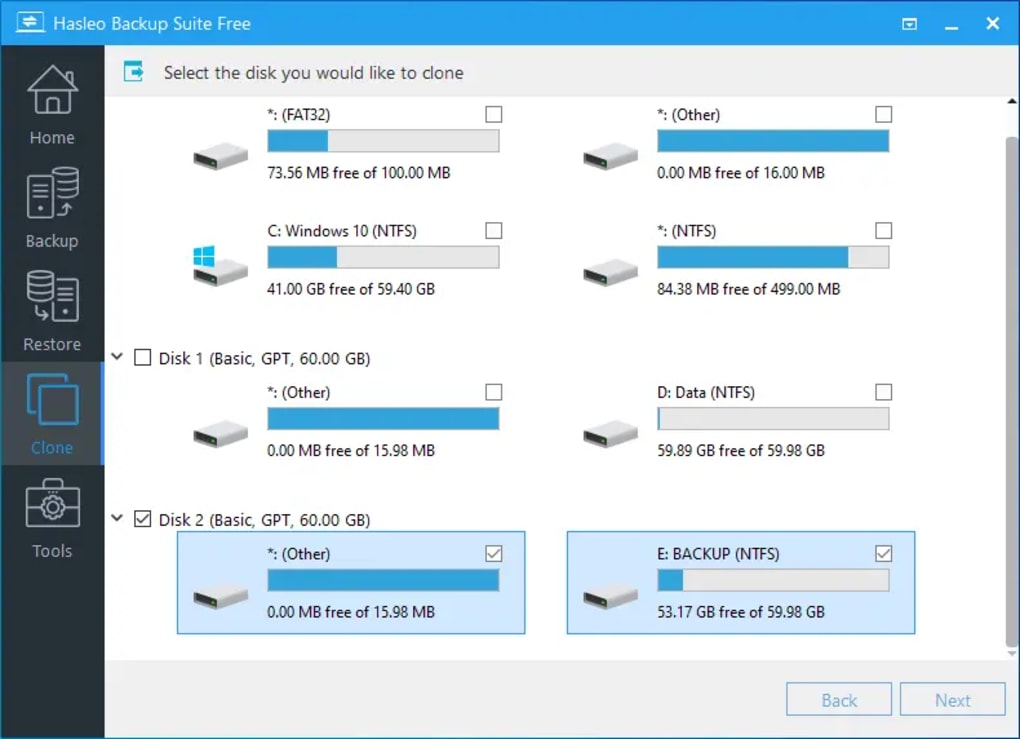
Using the Clone Feature follows a similar flow. Select “Clone Disk,” pick the source drive, and designate the target disk. The tool automatically copies the partition table, boot sector, and all data, producing a bootable replica. This is ideal when upgrading from an HDD to an SSD.
System Compatibility is broad. Hasleo Backup Suite runs on Windows 7, 8.1, 10, and 11 (both 32‑bit and 64‑bit). The software requires a minimum of 2 GB RAM and 200 MB of free disk space for installation. It works on both BIOS and UEFI systems, and supports GPT and MBR partition styles, ensuring that newer hardware configurations are fully covered.
Tips for Reliable Restores include regularly testing backup images. Hasleo provides a “Verify Backup” button that checks file integrity without performing a full restore. Store at least one backup on a physically separate device (e.g., a cloud drive) to guard against local hardware failure. Finally, keep the software updated; each patch often adds support for newer Windows builds and improves performance.
Pros, Cons, Frequently Asked Questions & Final Verdict
Pros
- Completely free with no hidden fees.
- Supports full, incremental, and differential backups.
- Offers disk cloning and partition‑level protection.
- Built‑in AES‑256 encryption for secure storage.
- User‑friendly wizard interface suitable for beginners.
- Regular updates ensure compatibility with Windows 11.
- Flexible scheduling and event‑driven triggers.
- Multiple destination options, including cloud services.
Cons
- Limited to Windows; no macOS, Linux, Android, or iOS support.
- Advanced settings (e.g., scripting) are not available in the free version.
- No built‑in image compression as powerful as some premium tools.
- Technical support is community‑based rather than dedicated 24/7.
- Large full backups can take significant time on slower drives.
Frequently Asked Questions
Is Hasleo Backup Suite really free?
Yes, the full feature set—including full, incremental, differential backups, and disk cloning —is available at no cost. There is no hidden premium tier, though the developer accepts donations.
Can I back up to a network share or NAS?
Absolutely. Hasleo lets you select any mapped network drive or UNC path as a backup destination, making it easy to store images on a NAS or SMB share.
Does the software support Windows 11?
Yes. The latest release is fully compatible with Windows 11 (both Home and Pro editions) and runs smoothly on UEFI‑based systems.
How do I restore a single file from a backup image?
Open the Backup tab, select the desired image, and click “Browse.” You can navigate the virtual file system, locate the specific file or folder, and click “Restore” to extract it to a location of your choice.
Is encryption optional?
Yes. During the backup wizard you can enable AES‑256 encryption. If you don’t need it, simply leave the option unchecked and the backup will be stored unencrypted.
Final Verdict & Call to Action
Hasleo Backup Suite delivers a surprisingly rich set of features for a completely free Windows backup solution. Its blend of full system imaging, incremental updates, and disk cloning makes it a solid contender for anyone looking to protect their data without paying a subscription fee. While the lack of macOS or Linux support may limit cross‑platform users, Windows‑centric individuals will find the software both reliable and easy to use. The built‑in encryption, scheduled tasks, and straightforward restoration process give peace of mind that your files are safe and recoverable.
If you’re ready to safeguard your PC with a trustworthy, no‑cost utility, download Hasleo Backup Suite today and start creating your first backup within minutes. Keep your system ready for the unexpected—whether it’s a hardware failure, ransomware attack, or accidental file deletion.
Guides et tutoriels
Comment installer Hasleo Backup Suite
- Cliquez sur le bouton Télécharger ci-dessus.
- Une fois redirigé, acceptez les conditions et cliquez sur Installer.
- Attendez la fin du téléchargement de Hasleo Backup Suite sur votre appareil.
Comment utiliser Hasleo Backup Suite
Ce logiciel est principalement utilisé pour les fonctionnalités décrites ci-dessus. Ouvrez l'application après l'installation pour explorer ses capacités.
Avis des utilisateurs
Aucun avis pour le moment. Soyez le premier à partager votre expérience.
Vous aimerez peut-être aussi
plus
Llama 2
Free-to-use large language model As the new addition to Meta’s arsenal of langua...

NotebookLM
Revolutionizing the note-taking and idea-generation process NotebookLM is an exp...

Github co pilot
AI-inspired software development and coding platform GitHub Copilot is a browser...

Google Gemma
Google’s lightweight AI models Introducing Google Gemma , a family of cutting-ed...

AI Image Enlarger
A free app for Windows, by ai-image-larger. AI Image Enlarger is a free software...

DALL E
AI-driven text-to-image transformation engine DALL·E is a free graphic and desig...